User Manual
Digital Intelligence for Local Organizations and Societies
Welcome to the comprehensive user guide for DILOS. This manual will help you navigate and utilize all features of the platform effectively.
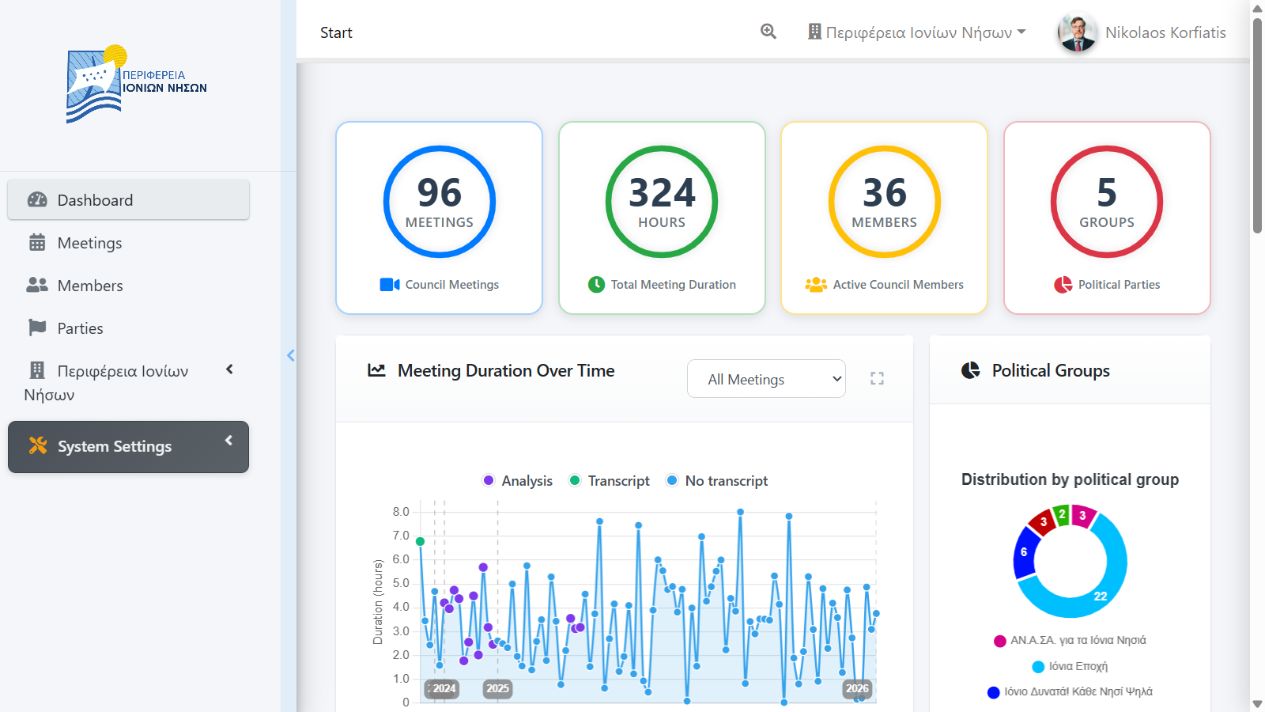
Dashboard Overview Screenshot
What is DILOS?
DILOS (Digital Intelligence for Local Organizations and Societies) is a comprehensive council management platform designed to streamline the organization, transcription, and analysis of council meetings. It provides tools for:
- Meeting Management: Organize and track council sessions
- Automatic Transcription: Convert speech to text with speaker identification
- Analytics: Generate insights on participation and speaking patterns
- Search & Discovery: Find specific topics and discussions across meetings
- Member Management: Maintain records of council members and affiliations
System Requirements
To use DILOS effectively, ensure your system meets the following requirements:
Browser Requirements
- Chrome 90+ (Recommended)
- Firefox 88+
- Safari 14+
- Edge 90+
Hardware Requirements
- Minimum 4GB RAM
- Stable internet connection
- Audio output for video playback
- 1920x1080 resolution recommended
First Login
Follow these steps to access the system for the first time:
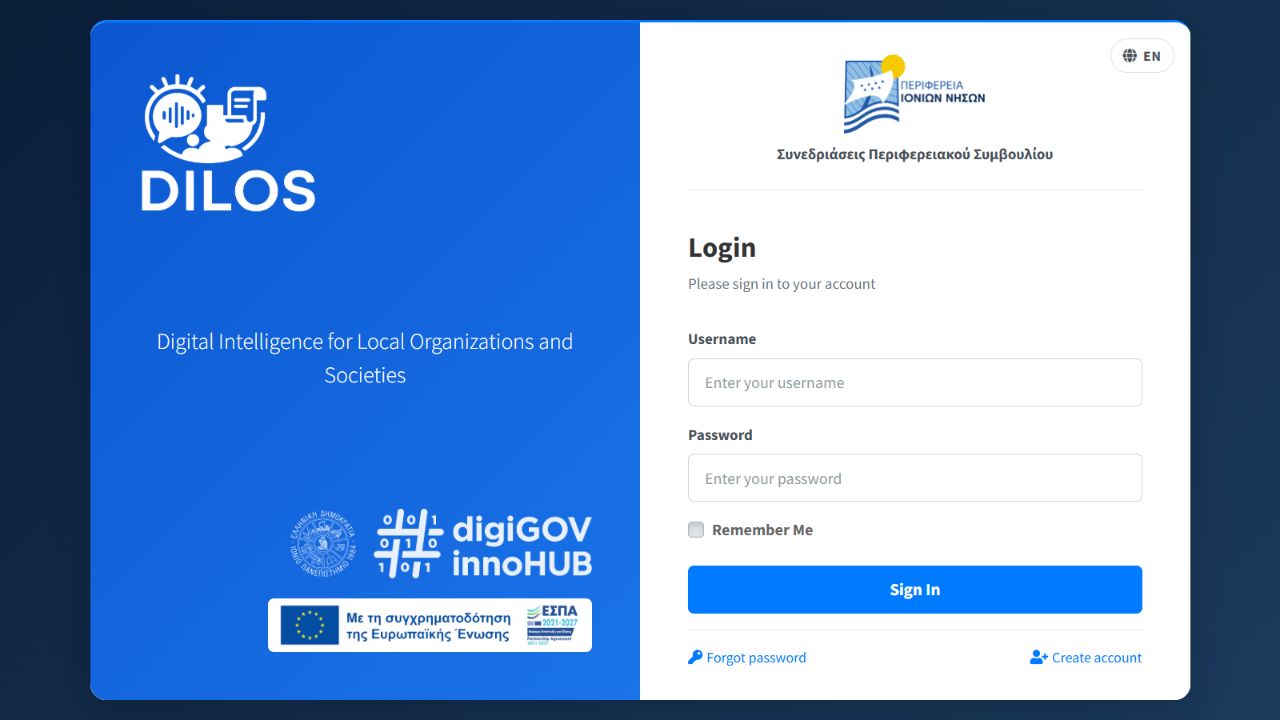
Login Form Screenshot
- Navigate to the login page using the URL provided by your administrator
- Enter your credentials - username and password
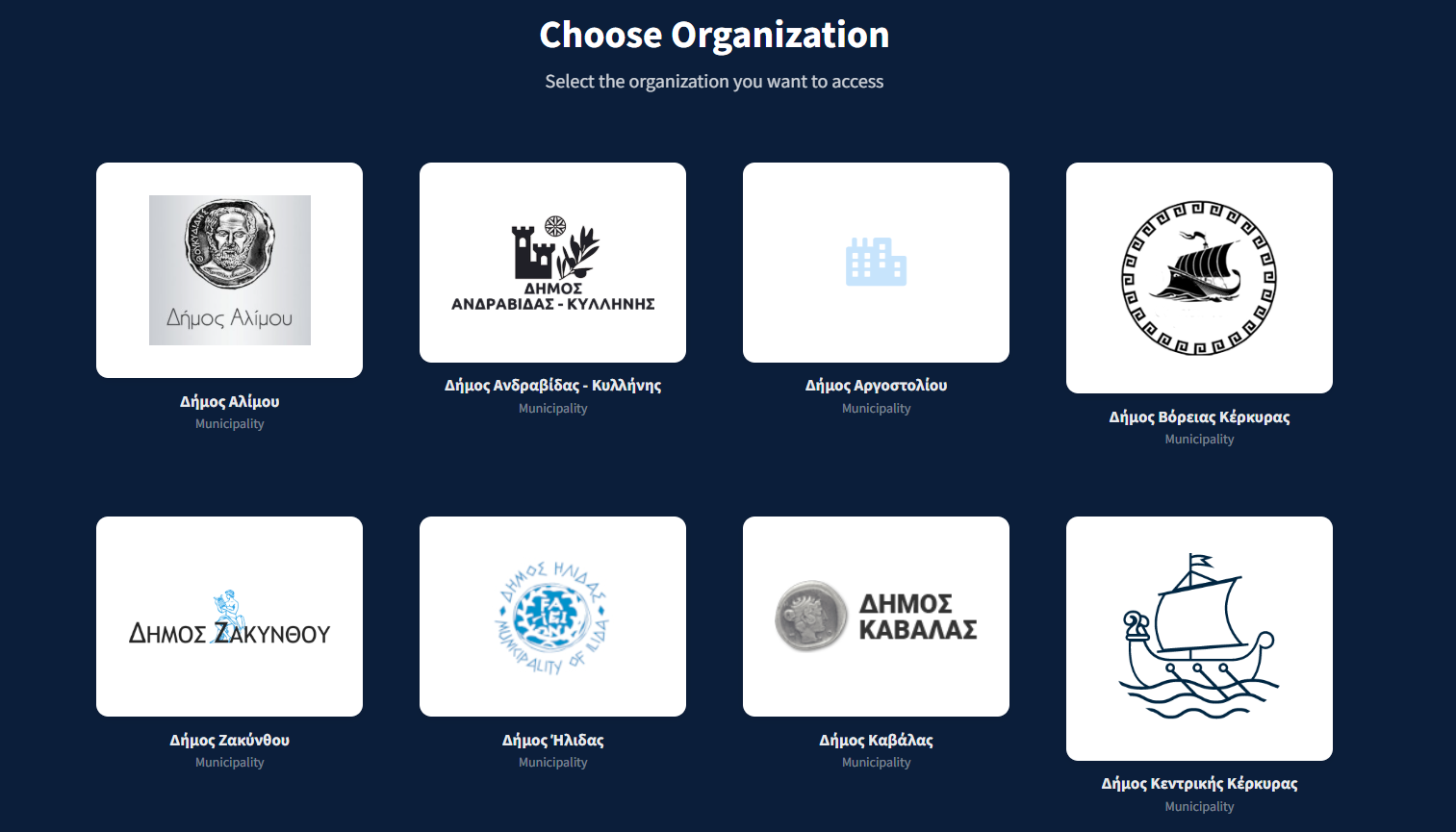
- Select your organization if you have access to multiple organizations
- Complete any required setup such as setting up your profile
Note: If you don't have login credentials, contact your system administrator for account creation.
Dashboard Layout
The dashboard is your central hub for accessing all system features. It consists of several key areas:
Dashboard Layout Diagram
Navigation Bar
Located at the top of the screen, provides access to main sections:
- Dashboard: Return to the main dashboard
- Meetings: Browse and manage meetings
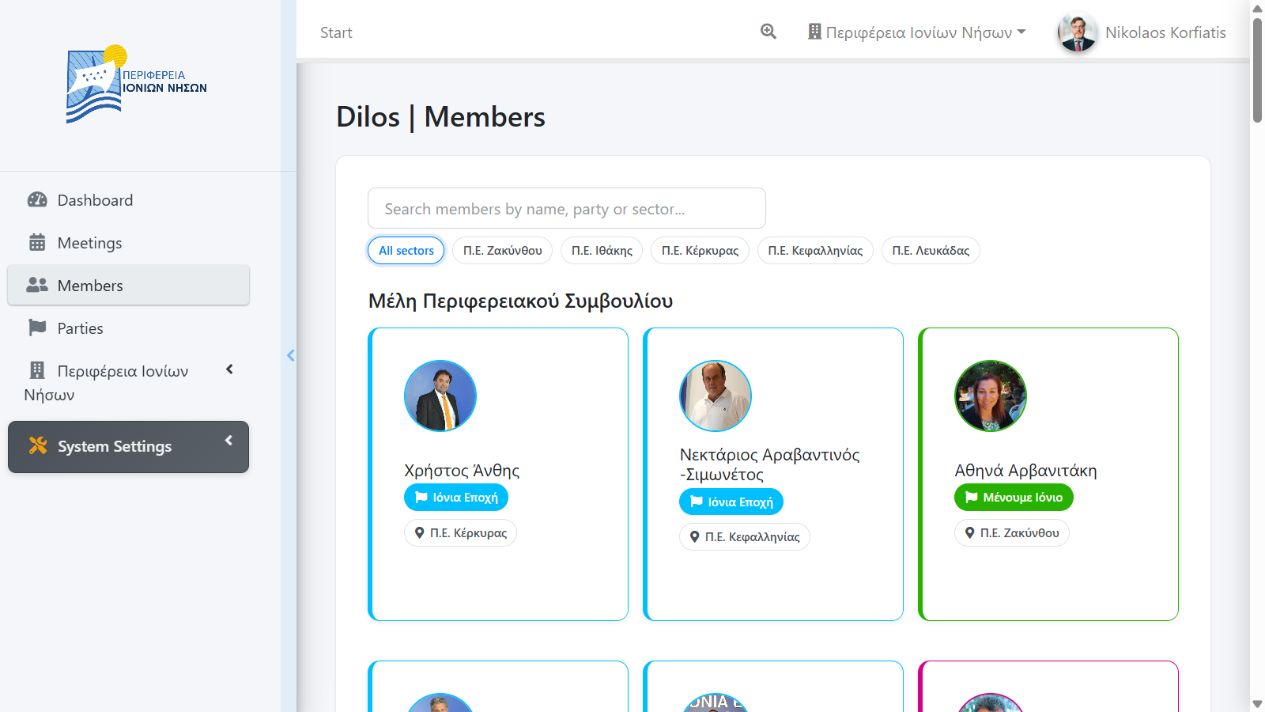
- Members: View council member information
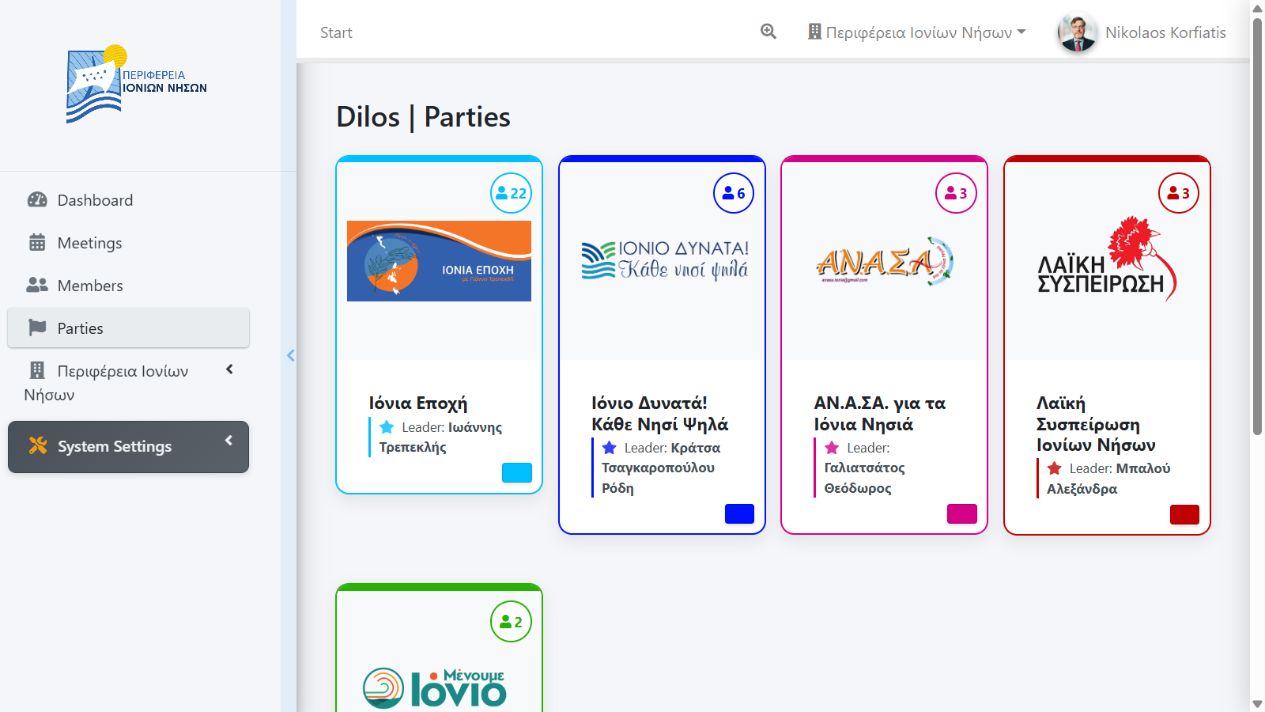
- Parties: Manage political party information
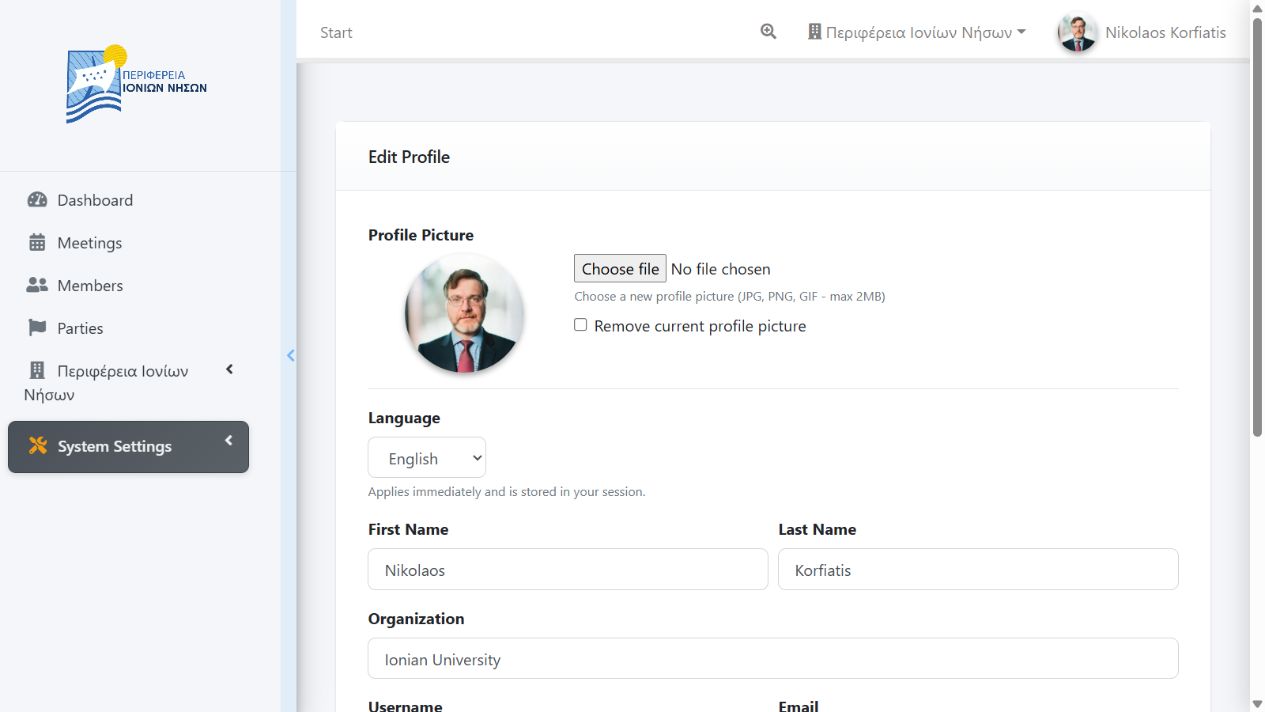
- Profile: Access your user settings
Main Content Area
Displays recent meetings, statistics, and quick access tools.
Viewing Meetings
The meetings section allows you to browse and access all council sessions:
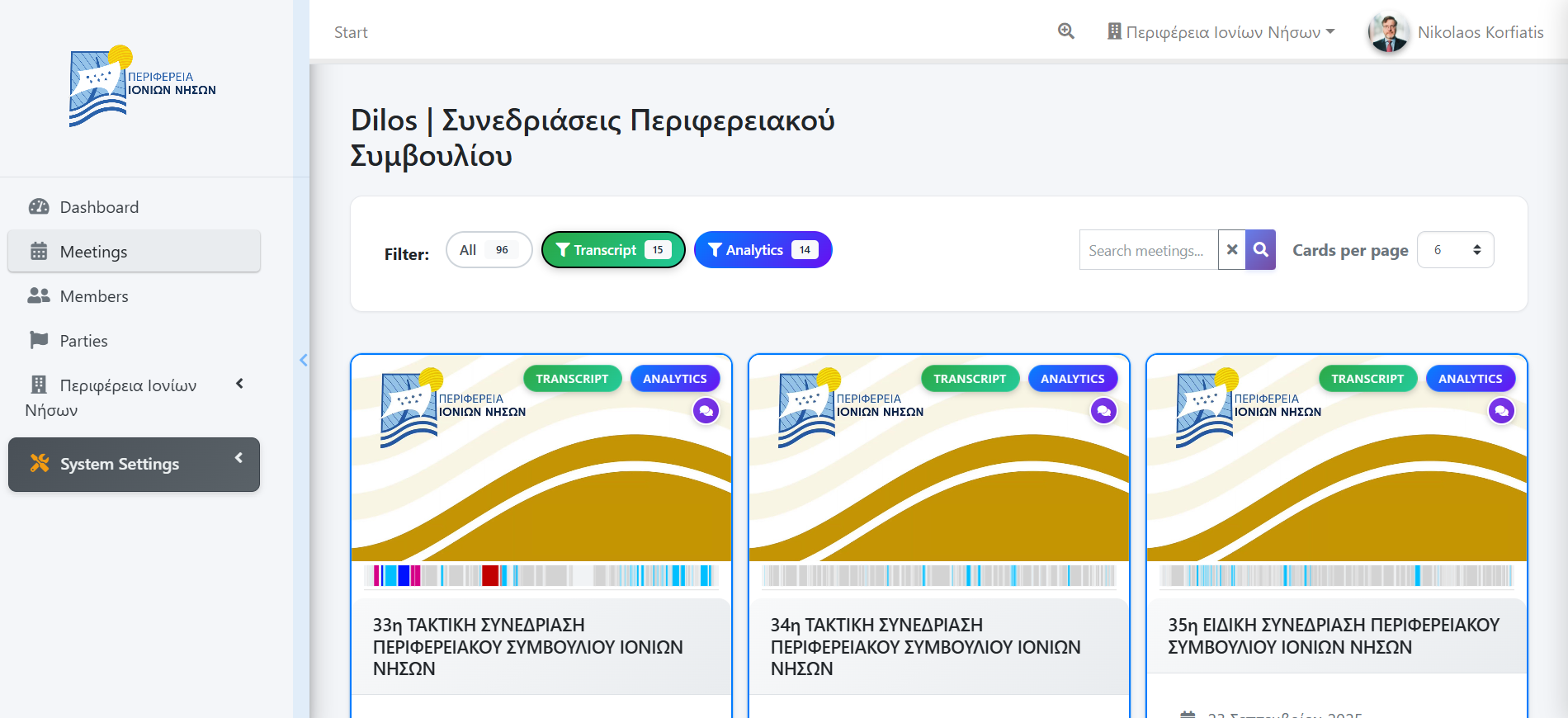
Meetings List View Screenshot
Meeting Cards
Each meeting is displayed as a card containing:
- Meeting title and date
- Duration and participant count
- Quick statistics (speaking time, party distribution)
- Access buttons for viewing details
Meeting Details
Click on any meeting to access the detailed view with comprehensive information and tools:
Meeting Detail Page Screenshot
Key Components
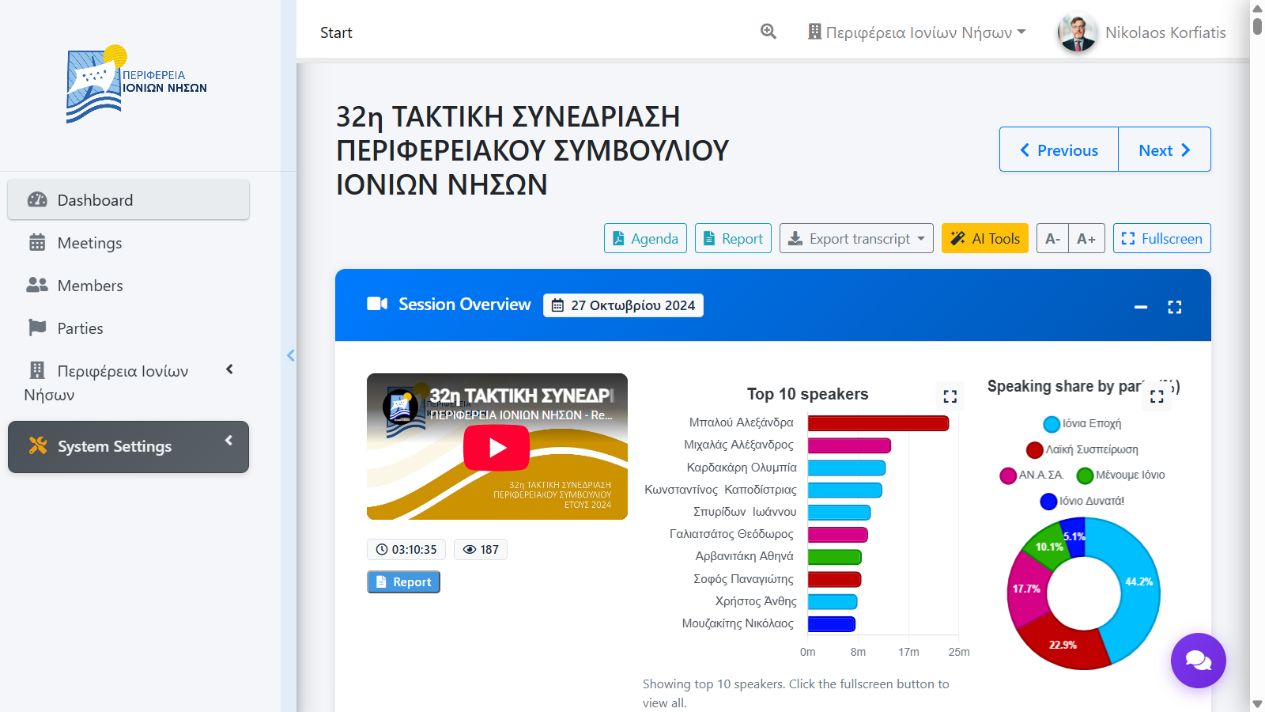
- Video Player: Watch the meeting recording with synchronized transcript
- Transcript Panel: Read and edit meeting transcripts
- Analytics Charts: View speaking statistics and party distribution
- Timeline Chart: Visual representation of speaking patterns
- Tools Panel: Access editing and management functions
Transcript Editing
Edit and refine meeting transcripts to ensure accuracy:
Transcript Editor Interface
Editing Process
- Enable Edit Mode: Click the edit button to make changes
- Select Text: Click on any transcript segment to edit
- Make Changes: Correct text, timing, or speaker assignments
- Save Changes: Confirm your edits to update the transcript
Speaker Assignment
Assign transcript segments to specific council members for accurate attribution:
Speaker Assignment Dialog
Assignment Steps
- Select a transcript segment
- Click "Assign Speaker" button
- Choose from the list of council members
- Confirm the assignment
Edit History & Changes
Track and review all changes made to transcript content:
Edit History Interface Screenshot
History Features
- Change Tracking: Complete audit trail of all transcript modifications
- User Attribution: See who made each change and when
- Before/After Comparison: View original and modified text side-by-side
- Revert Capability: Restore previous versions if needed
- Change Summary: Overview of modifications per editing session
Note: Edit history is permanent and cannot be deleted, ensuring complete accountability.
Bulk Operations
Efficiently process multiple transcript segments at once:
Bulk Operations Interface Screenshot
Available Bulk Actions
- Mass Speaker Assignment: Assign speakers to multiple fragments simultaneously
- Cascade Assignment: Apply speaker to current and subsequent fragments
- Bulk Tag Application: Apply tags to multiple segments
- Fragment Merging: Combine multiple adjacent fragments
- Time Adjustment: Adjust timing for multiple segments
Using Bulk Operations
- Select multiple fragments using checkboxes or Shift+Click
- Choose the desired bulk action from the toolbar
- Configure the operation parameters
- Review and confirm the changes
Guest Speaker Management
Handle speakers who are not regular council members:
Guest Speaker Interface Screenshot
Guest Speaker Features
- Quick Addition: Add guest speakers during transcript editing
- Role Assignment: Specify guest speaker roles (Citizen, Expert, Official, etc.)
- Contact Information: Store optional contact details
- Speaking Statistics: Track guest speaker participation
- Meeting Association: Link guests to specific meetings
Tip: Guest speakers can be promoted to regular members if they become recurring participants.
Timeline Visualization
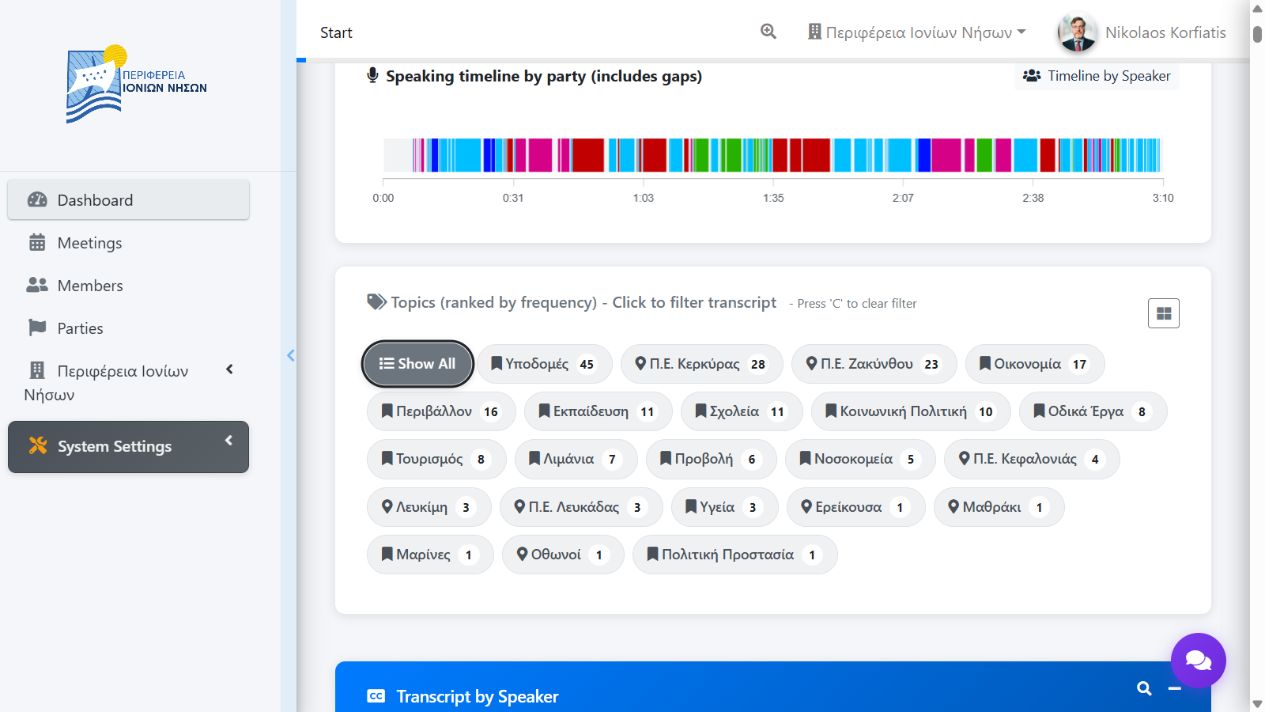
Visual representation of meeting flow and speaking patterns:
Timeline Visualization Screenshot
Timeline Features
- Color-Coded Speakers: Each participant has a unique color
- Party Grouping: Visual grouping by political affiliation
- Interactive Navigation: Click timeline segments to jump to that moment
- Speaking Duration: Visual representation of speaking time lengths
- Meeting Flow: Overview of meeting progression and activity
Timeline Interaction
- Hover Details: See speaker and duration information
- Zoom Controls: Focus on specific time periods
- Export Options: Save timeline as image for reports
- Fullscreen Mode: Expand for detailed analysis
Speaking Statistics
View comprehensive analytics on member participation and speaking patterns:
Speaking Statistics Charts
Available Metrics
- Top Speakers: Members with most speaking time
- Party Distribution: Speaking time by political party
- Timeline Analysis: Speaking patterns throughout the meeting
- Participation Rates: Member engagement metrics
Timeline Charts
Visual representations of speaking patterns during meetings:
Timeline Chart Example
Chart Features
- Color Coding: Different colors represent different parties/speakers
- Interactive Navigation: Click on segments to jump to that time
- Hover Information: View speaker details and duration
- Fullscreen Mode: Expand charts for detailed analysis
Participation Metrics
Detailed analysis of member engagement and participation patterns:
Participation Metrics Dashboard Screenshot
Key Metrics
- Speaking Time: Total and average speaking duration per member
- Meeting Attendance: Participation frequency across meetings
- Engagement Rate: Active participation vs. presence ratio
- Topic Participation: Involvement in specific discussion topics
- Question/Response Patterns: Analysis of interactive participation
Visualization Options
- Bar Charts: Compare participation across members
- Heat Maps: Visual representation of participation intensity
- Trend Lines: Participation changes over time
- Pie Charts: Relative participation distribution
Trend Analysis
Analyze patterns and trends in council participation over time:
Trend Analysis Charts Screenshot
Trend Types
- Speaking Time Trends: Changes in member participation over time
- Topic Evolution: How discussion topics change across meetings
- Party Dynamics: Shifts in political group participation
- Meeting Patterns: Frequency and duration trends
- Seasonal Analysis: Participation patterns by time periods
Analysis Tools
- Time Range Selection: Focus on specific periods
- Comparative Analysis: Compare different time periods
- Statistical Indicators: Average, median, and trend indicators
- Correlation Analysis: Identify relationships between metrics
Custom Reports
Generate tailored reports for specific analysis needs:
Custom Report Builder Screenshot
Report Types
- Member Activity Reports: Individual or group participation summaries
- Meeting Summaries: Comprehensive meeting analysis reports
- Topic Reports: Analysis of specific discussion themes
- Comparative Reports: Side-by-side analysis of different periods
- Executive Summaries: High-level overview reports
Report Configuration
- Date Range Selection: Choose specific time periods
- Member Filtering: Include/exclude specific participants
- Data Points: Select specific metrics to include
- Output Format: PDF, CSV, or online viewing options
- Scheduling: Set up automatic report generation
Pro Tip: Save frequently used report configurations as templates for quick access.
Search Functionality
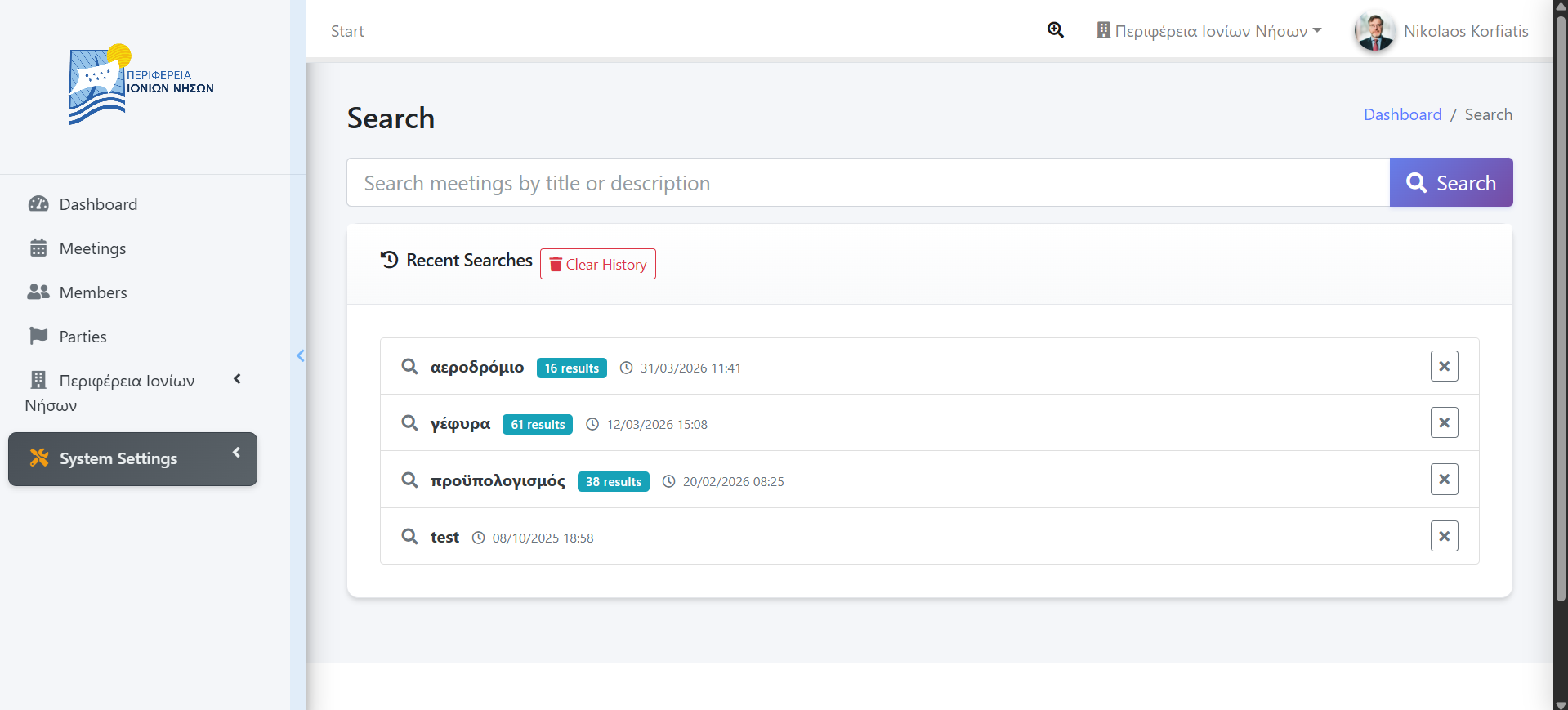
Powerful search tools to find specific content across all meetings:
Search Interface and Results
Search Capabilities
- Full-text Search: Find specific words or phrases
- Speaker Search: Find all instances of a specific speaker
- Date Range Filtering: Limit search to specific time periods
- Advanced Filters: Combine multiple search criteria
AI Features
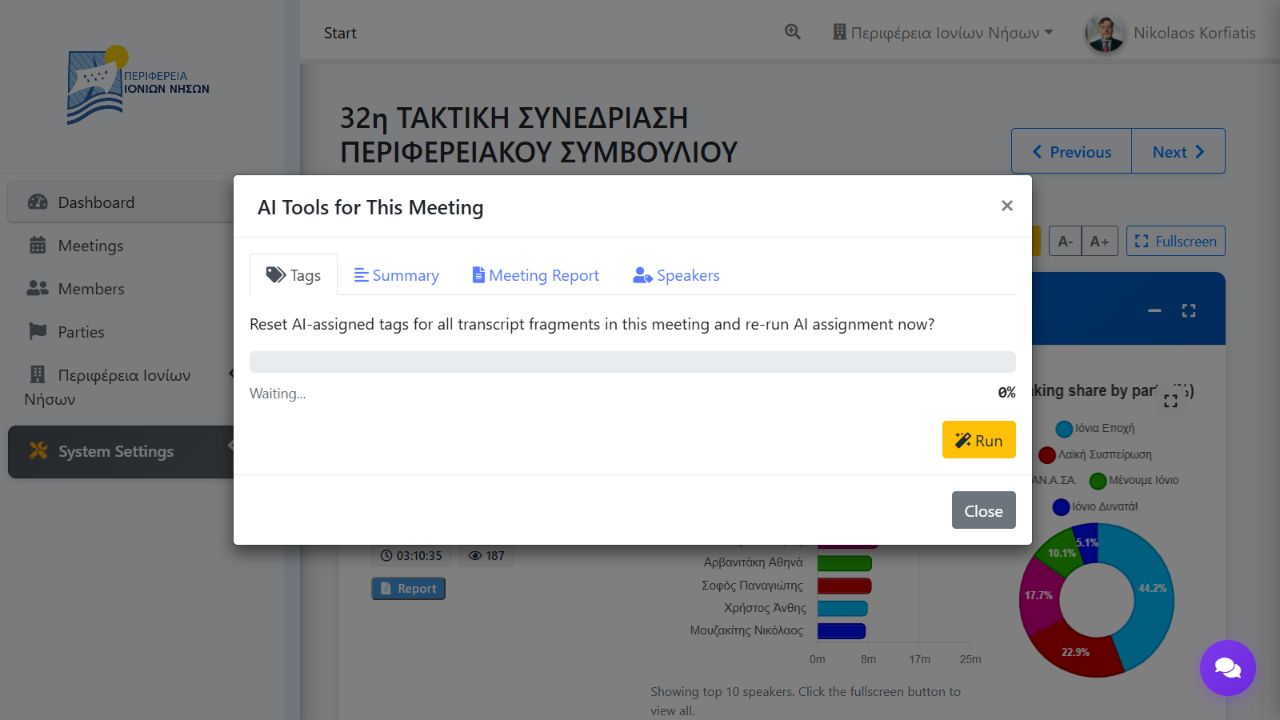
Leverage artificial intelligence for enhanced functionality:
AI Features Overview
AI Capabilities
- Automatic Transcription: Speech-to-text conversion
- Speaker Identification: Automatic speaker recognition
- Topic Detection: Identify key discussion topics
- Summary Generation: Create meeting summaries
User Preferences
Customize your experience with personal settings:
User Preferences Panel
Customization Options
- Display Settings: Adjust font size, themes, and layout
- Language Preferences: Choose your preferred language
- Notification Settings: Configure alerts and notifications
- Dashboard Layout: Customize widget placement
User Management (Admin)
Administrative functions for managing users and system settings:
Admin User Management Interface
Administrator Access Required: These features are only available to users with administrative privileges.
Meeting Filters & Search
Efficiently find specific meetings using the built-in filtering and search capabilities:
Meeting Filters Interface Screenshot
Available Filters
- Date Range: Filter meetings by specific time periods
- Meeting Type: Filter by council meetings, committees, or custom types
- Text Search: Search meeting titles and descriptions
- Status Filters: Show published, draft, or archived meetings
Quick Search Tips
- Use partial words to find meetings with similar titles
- Combine filters for more precise results
- Use the reset button to clear all active filters
Agenda Management
Manage meeting agendas with PDF upload and viewing capabilities:
Agenda Upload Interface Screenshot
Agenda Features
- PDF Upload: Upload agenda documents directly to meetings
- Inline Viewing: View agendas without leaving the meeting page
- Download Options: Download original agenda files
- Version Control: Replace agendas while maintaining history
Tip: Agendas are automatically linked to their corresponding meetings and can be accessed from the meeting details page.
Meeting Statistics
View comprehensive statistics for individual meetings:
Meeting Statistics Dashboard Screenshot
Available Metrics
- Total Duration: Complete meeting length
- Speaker Count: Number of active participants
- Speaking Distribution: Time breakdown by participant
- Party Representation: Political group participation rates
- Fragment Count: Number of transcript segments
Navigation
Learn how to navigate efficiently through the DILOS interface using the main menu, breadcrumbs, and shortcuts.
Navigation Menu Screenshot
Quick Search
Use the quick search feature to find meetings, members, or content across your organization quickly.
Quick Search Interface Screenshot
Video Player
Master the video player controls including playback speed, seeking, and synchronized transcript viewing.
Video Player Interface Screenshot
Transcript Navigation
Navigate through meeting transcripts efficiently with timestamps, speaker filters, and content jumps.
Transcript Navigation Screenshot
Fragment Management
Create, edit, split, and merge transcript fragments for better organization and analysis.
Fragment Management Interface Screenshot
Tag Assignment
Assign tags to transcript segments for categorization, search, and analysis purposes.
Tag Assignment Interface Screenshot
Party Analytics
Analyze speaking patterns, participation rates, and trends by political party affiliation.
Party Analytics Dashboard Screenshot
Export Options
Export transcripts, reports, and data in various formats including PDF, Word, and CSV.
Export Options Interface Screenshot
Member Profiles
View and manage detailed member profiles including speaking statistics and participation history.
Member Profile Interface Screenshot
Party Affiliations
Manage political party affiliations and track membership changes over time.
Party Affiliations Management Screenshot
Member Statistics
Access comprehensive statistics about member participation, speaking time, and engagement.
Member Statistics Dashboard Screenshot
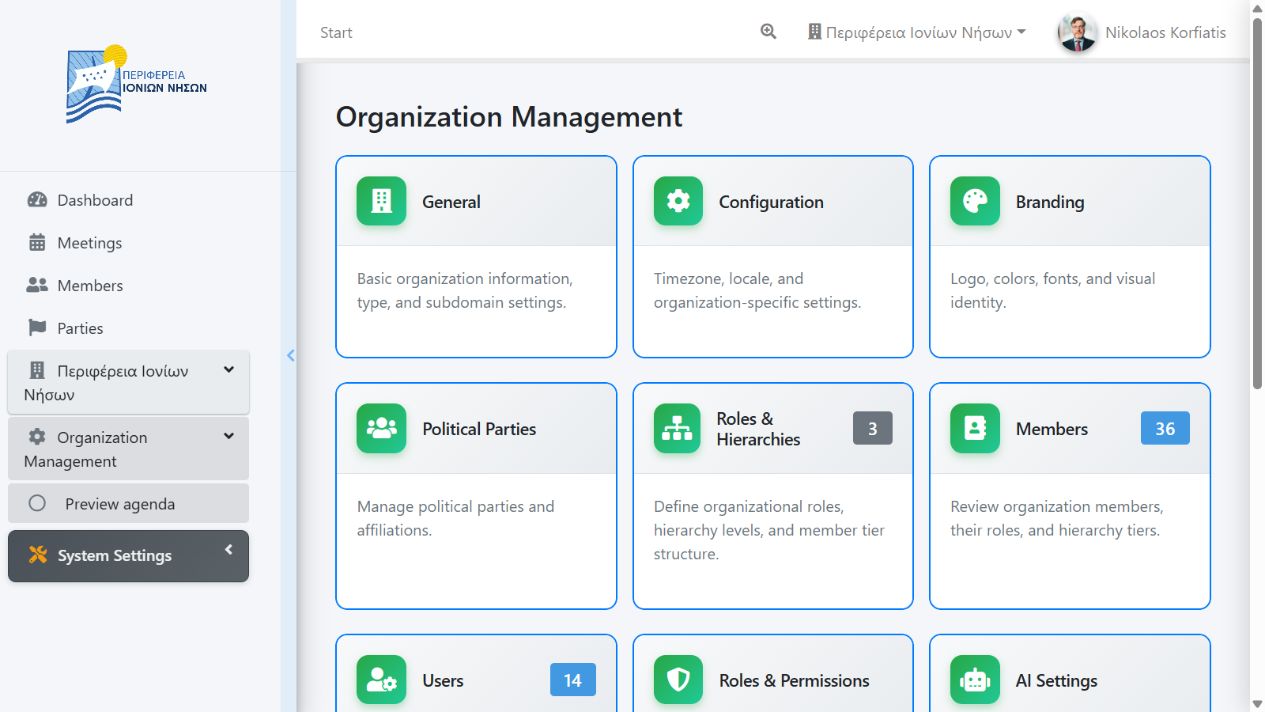
Organization Settings
Configure organization-specific settings including branding, features, and user permissions.
Organization Settings Interface Screenshot
System Maintenance
Learn about system maintenance tasks, backups, and troubleshooting common issues.
System Maintenance Interface Screenshot
Global Search
Comprehensive search across all content types and data:
Global Search Interface Screenshot
Search Scope
- Meeting Content: Search through all meeting transcripts
- Member Information: Find members by name, role, or party
- Meeting Metadata: Search meeting titles, dates, and descriptions
- Tags and Categories: Find content by assigned tags
- Speaker Assignments: Search by speaker attribution
Advanced Filters
Powerful filtering options to refine search results and data views:
Advanced Filters Interface Screenshot
Filter Categories
- Date Ranges: Filter by specific time periods or date ranges
- Speaker Filters: Include/exclude specific members or parties
- Content Types: Filter by meeting types or content categories
- Tag Filters: Filter by assigned tags or topic categories
- Status Filters: Filter by publication status or processing state
AI Summarization
Automated meeting and content summarization using artificial intelligence:
AI Summarization Interface Screenshot
AI Features
- Meeting Summaries: Automated generation of meeting overviews
- Topic Extraction: Identify key discussion topics and themes
- Action Items: Extract decisions and action items
- Speaker Insights: Analyze speaking patterns and contributions
- Trend Detection: Identify emerging topics and patterns
Keyboard Shortcuts
Efficient navigation and operations using keyboard commands:
Keyboard Shortcuts Reference
Common Shortcuts
- Ctrl + F: Open search dialog
- Space: Play/pause video in meeting view
- E: Enter/exit transcript edit mode
- S: Assign speaker to current fragment
- T: Add tags to current fragment
- Escape: Cancel current operation or close dialogs
Permission Management
Configure user access rights and system permissions:
Permission Management Interface Screenshot
Permission Levels
- Viewer: Read-only access to meetings and transcripts
- Editor: Can edit transcripts and assign speakers
- Moderator: Can manage meetings and moderate content
- Administrator: Full system access and user management
- Super Admin: System-wide administrative privileges
Granular Permissions
- Content Editing: Control who can edit transcripts
- Member Management: Permissions for managing council members
- Analytics Access: Control access to reporting features
- Export Capabilities: Permissions for data export
Meeting Administration
Administrative tools for managing meetings and content:
Meeting Administration Interface Screenshot
Administrative Functions
- Bulk Meeting Operations: Process multiple meetings simultaneously
- Meeting Import/Export: Transfer meeting data between systems
- Content Moderation: Review and approve meeting content
- Archive Management: Handle long-term storage and retrieval
- Quality Control: Monitor and ensure data accuracy
Database Management
System-level database operations and maintenance:
Database Management Interface Screenshot
Database Operations
- Backup Creation: Generate system backups on demand
- Data Restoration: Restore from backup files
- Performance Monitoring: Track database performance metrics
- Maintenance Tasks: Optimize tables and clean up data
- Data Migration: Transfer data between environments
Warning: Database operations should only be performed by qualified system administrators.
YouTube Integration
Automated meeting import and management from YouTube:
YouTube Integration Interface Screenshot
Integration Features
- Playlist Monitoring: Automatically detect new meetings
- Metadata Extraction: Import meeting details from video descriptions
- Automated Processing: Queue meetings for transcription
- Thumbnail Generation: Create preview images automatically
- Sync Management: Keep local and YouTube content synchronized
Configuration Steps
- Configure YouTube API credentials
- Set up playlist monitoring
- Define import rules and filters
- Test integration with sample content
- Schedule automated sync operations
Audit Logs
Comprehensive activity tracking and security monitoring:
Audit Logs Interface Screenshot
Tracked Activities
- User Actions: Login/logout, content access, and modifications
- Content Changes: Transcript edits, speaker assignments, and deletions
- Administrative Actions: User management, permission changes, and system settings
- System Events: Automated processes, imports, and maintenance tasks
- Security Events: Failed login attempts and unauthorized access
Log Analysis
- Filter and Search: Find specific events by user, action, or time
- Export Capabilities: Generate audit reports for compliance
- Real-time Monitoring: Monitor ongoing system activity
- Retention Policies: Configure how long logs are maintained
Getting Help
If you need assistance using the system, here are your support options:
Technical Support
Contact your system administrator for technical issues, account problems, or system errors.
Training
Request additional training sessions or workshops to learn advanced features and best practices.